- Instant email delivery
- Global licenses
- Secure checkout
- 24/7 customer support
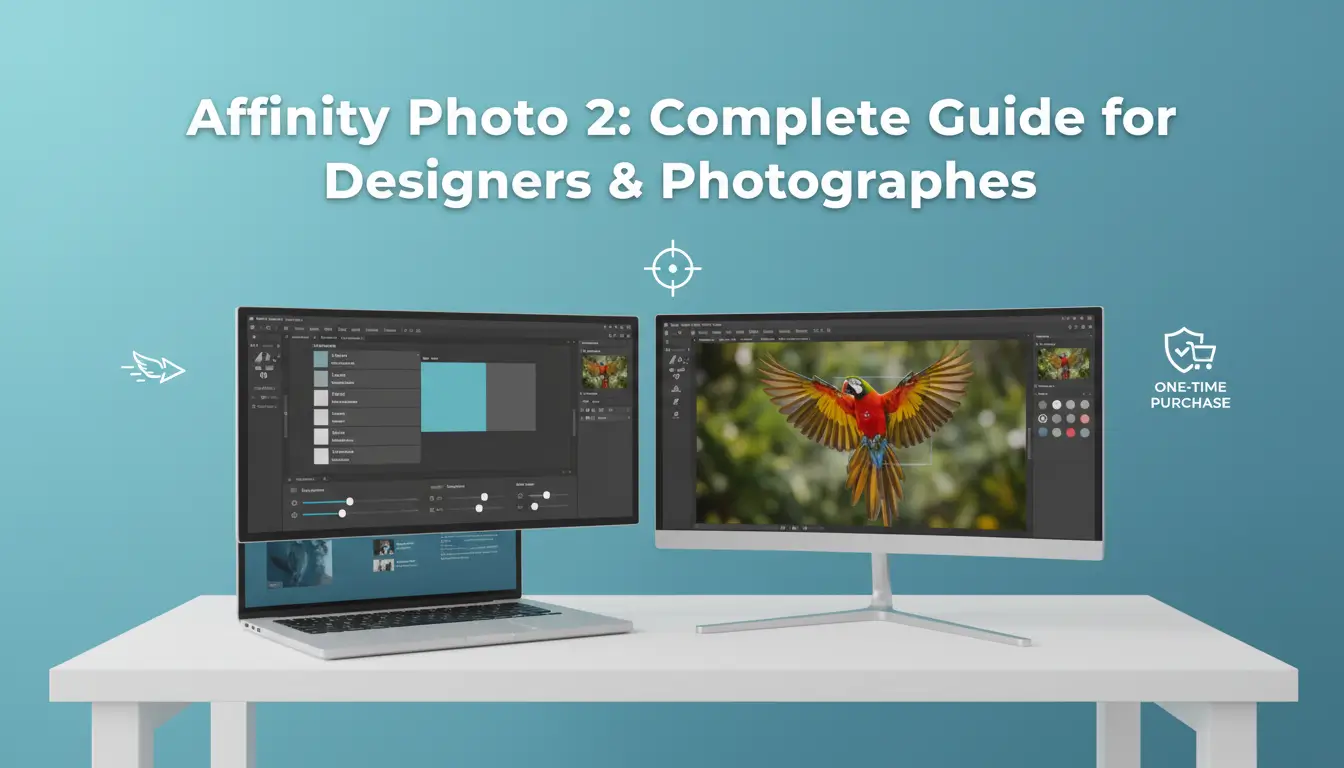
Affinity Photo 2 is a professional raster image editor designed for photo retouching, compositing, and design work. Focused on speed and precision, it provides a modern, non-destructive workflow with advanced RAW processing, live filters, and a powerful brush engine. Many photographers and designers prefer its one-time purchase model over subscription software because it delivers high-end tools without recurring fees. The app runs on macOS, Windows and iPad and supports common professional file formats, making it easy to slot into existing pipelines. For official downloads and licensing information, visit the Affinity official site.
At its core, affinity photo 2 combines fast performance with studio-grade toolsets: real-time adjustments, editable live layers, precise selection and masking tools, and high-quality healing and cloning for detailed retouching. The software handles large compositions smoothly and includes batch processing and customizable macros to speed repetitive tasks. Compatibility with PSD and robust export options mean collaborators using other apps can exchange files without losing fidelity. It also integrates tightly with Affinity Designer and Publisher via StudioLink, enabling mixed raster and vector workflows without switching programs. If you’re evaluating non-subscription alternatives or looking for bundle options, see the Affinity V2 page for purchasing details and related products.
Affinity Photo 2 is ideal for photographers, illustrators, and design professionals who want advanced, non‑destructive editing without a subscription model. From studio photographers needing precise RAW processing and batch workflows to illustrators who combine pixel painting with vector assets, its toolset covers retouching, compositing, and high‑fidelity color work.
Freelancers and small studios appreciate the one‑time purchase and cross‑platform parity (macOS, Windows, iPad), while educators and serious hobbyists benefit from the professional feature set—live filters, frequency separation, and full PSD compatibility—without ongoing license fees. The interface balances depth and speed, so users who value control over automation will find it particularly productive.
If you want to compare purchasing options, see the Affinity V2 details at SoftAuthentic, or visit the official Affinity site to download trials and platform-specific installers.
affinity photo 2 focuses squarely on speed, stability, and practical tool improvements that accelerate everyday editing. Under-the-hood optimisations take better advantage of multi‑core CPUs and GPU acceleration to deliver noticeably faster opening, rendering and export times, especially on large layered documents. For photographers and designers who juggle complex files, those gains translate to a smoother, more responsive workflow.
The update also expands the toolbox with refined selection and retouching controls, improved live filters and smarter batch operations that reduce repetitive steps. Many tweaks were guided by real‑world workflows: faster non‑destructive adjustments, improved RAW handling, and more reliable PSD interchange so projects move between apps with fewer surprises. Stability and crash resilience were prioritised, meaning long editing sessions and heavy compositing are less likely to interrupt work.
If you’re considering an upgrade or a licence for multiple seats, check options and purchasing details from a trusted vendor like SoftAuthentic for an Affinity V2 licence. For official downloads, trial information and system requirements, visit the Affinity site to ensure your hardware will benefit from the new multi‑core and GPU enhancements.
In practice, affinity photo 2 shortens the time between idea and finished image. Faster previews and live filter responsiveness mean you can iterate more freely; improved export pipelines and batch processing save time when delivering multiple sizes or variants. Enhanced selection, healing and masking tools reduce the need for manual refinements, while better crash recovery and autosave protect long sessions. Taken together, these improvements are aimed at designers and photographers who need reliable, repeatable performance across real projects rather than isolated feature demos.
affinity photo 2 focuses on speed, stability, and smarter editing tools. Right away you’ll notice much faster live previews and brush responsiveness, which makes retouching and painting feel instantaneous. Recovery tools are more robust, with improved autosave and crash recovery that protect long sessions and complex edits. Masking has seen significant refinement — better edge detection, feathering controls, and non-destructive workflows make compositing quicker and more accurate.
For official downloads and detailed release notes, see the Affinity website. If you’re comparing purchase options or want regional pricing, check this Affinity V2 overview.
affinity photo 2 presents a clean, modular workspace that adapts to how you work. The interface is built around personas — distinct modes that surface the precise tools and panels needed for tasks like developing RAWs, retouching, or advanced compositing — so you’re not hunting through menus. Panels are dockable and collapsible, the tool panel groups common editing functions logically, and the context toolbar gives fast access to tool-specific options. That organization keeps the workspace focused and reduces visual clutter while keeping powerful controls a click away.
The application is highly customizable: you can reorder tools, create custom toolbars, save named workspaces, and map almost every command to keyboard shortcuts. Core editing features such as nondestructive layers, history, and snapping combine with brush and selection tools to handle both quick fixes and elaborate edits. Efficiency-minded designers will appreciate macro recording and configurable export presets that make repetitive tasks simple to reproduce. For purchasing or learning more about the Affinity v2 family, see the Affinity V2 overview and licensing.
The Personas model is the fastest way to streamline workflows: switch to Develop for RAW corrections, to Liquify for targeted warps, or to the Photo persona for compositing and pixel-level edits. Shortcuts accelerate these switches — customize them to match muscle memory from other apps, and save them in a workspace so every project opens ready. Tips: assign frequently used tools to single keys, create duplicate workspaces for different project types, and use the History and Snap assistants to keep edits non-destructive. To get the official installer and documentation, visit the Affinity official download page.
Personas in Affinity Photo 2 divide complex workflows into focused environments so you see only the tools you need. Switching personas instantly reshapes the UI for tasks such as pixel retouching, raw processing, or mesh transforms, helping you stay efficient and avoid tool overload.
Treat personas like dedicated rooms in a studio: enter the room that matches the job, make changes, then move on. For official documentation and downloads consult the Affinity Photo official page, or see purchasing options on our Affinity v2 product page.
affinity photo 2 brings a suite of advanced retouching and compositing tools designed for professional image-makers. From high-fidelity frequency separation to intelligent inpainting and razor‑sharp selection controls, it lets you resolve complex edits while preserving image integrity and working non‑destructively.
The app’s frequency separation workflow isolates texture from tone so you can remove blemishes or smooth skin without losing fine detail. Inpainting (context-aware remove) quickly fills gaps or removes distractions with realistic texture blending, while a robust Healing Brush and Clone tools give manual control where required. Selection tools — including the Selection Brush, Refine Edge, and flood select options — produce precise masks for hair, fur, and intricate edges, and feathering or refine passes keep transitions natural.
Layer effects and an extensive set of blend modes enable complex composites without altering source pixels. Use adjustment layers, live filters, and layer masks to iterate freely; every change remains reversible so you can experiment confidently. The non‑destructive layer stack, combined with snapping, smart guides, and pixel-perfect transform controls, makes compositing faster and more predictable for client work or high-resolution print output.
For step‑by‑step tutorials and reference on tools and workflows, consult the official Affinity documentation. If you’re comparing options, you can also review purchasing and version details for Affinity V2 from a trusted reseller.
Working nondestructively lets you iterate freely. In affinity photo 2 start with adjustment layers, live filters and masks so every change remains editable: adjustment layers for color and tone, live filters for blur or sharpen effects you can tweak later, and pixel or vector masks to hide or reveal detail without erasing. Use layer groups and blend modes to organize complex composites, and keep copies of layers as backups rather than flattening.
When you need to fine‑tune, double‑click a live filter or open an adjustment’s properties — edits propagate without degrading originals. For final output, export flattened copies while preserving the layered source file for later revisions. If you want to compare workflows or find downloads and resources, see the Affinity V2 resource page. Official documentation is available at the Affinity Photo official page.
affinity photo 2’s Develop persona offers a photographer-focused RAW conversion workflow that balances technical control with a responsive, detail-preserving engine. The module is built to preserve fine detail from demosaicing while giving granular sliders for exposure, white balance, recovery, and shadow interpolation so you can shape tone without destroying texture. Real-time histogram feedback and highlight reconstruction tools make it easy to judge clipping and pull back detail from bright areas.
The Develop persona groups adjustments into logical stages: basic exposure and white balance, tonal shaping with curves and levels, noise reduction and sharpening tuned for raw data, then lens corrections and chromatic aberration removal that use profile-based fixes where available. Localized corrections—brushes, gradients and radial tools—allow targeted contrast, color, or noise treatment before you commit to further edits in the Photo persona.
Because the RAW engine processes data at the sensor level, you get better results when dialing in noise reduction, detail recovery and color calibration early. Non-destructive previews let you compare processing presets and batch-apply base corrections across a shoot for consistent results. For more about Affinity’s suite and upgrades, see the Affinity V2 overview.
The Develop persona places familiar controls where photographers expect them: exposure, black & white points, tone curve, plus a four-band denoise and a detail-aware sharpening algorithm. Start by selecting an appropriate camera profile, set white balance and exposure, then refine tone with curves and local masks. Use lens corrections early to correct geometry and remove vignetting, then apply noise reduction conservatively to retain micro-detail. After export to the Photo persona you can finish with layer-based color grading and retouching. For official downloads and feature details, visit the Affinity Photo official page.
Begin every RAW edit in the Develop persona in affinity photo 2 to set a clean base exposure, white balance and noise reduction — these controls are RAW-specific and preserve highlight and shadow detail. Make conservative global adjustments (exposure, white point, profile and lens corrections) before committing the RAW changes.
After you develop the RAW base, switch to the Photo persona for localized edits. Use non-destructive layers, live filters and masked adjustments; perform healing, frequency separation and selective dodging/burning on pixel layers only after the global pass. Work in a high bit-depth document, avoid heavy sharpening until final output, and keep the original RAW export for future adjustments.
For downloads and official help, visit the Affinity Photo downloads page and consult our Affinity V2 guide for workflow examples.
affinity photo 2 sits at the center of a tightly integrated creative workflow. StudioLink lets you move seamlessly between Publisher, Designer and Photo without round‑tripping files: vector adjustments from Designer remain editable inside Publisher layouts, and pixel‑level retouching in Photo updates compositions in place. That real‑time handoff keeps layers, effects and color profiles consistent and reduces version confusion. Native plugin support and third‑party tools further expand capabilities — from advanced brush packs and LUTs to batch processors and camera‑raw helpers — while import/export compatibility with PSD, SVG and common raw formats preserves collaboration with other toolchains. For a quick look at available Affinity licensing and suite options, see the Affinity V2 suite overview.
Using StudioLink with affinity photo 2 means you can apply pixel edits, then switch to vector tools without leaving the same document environment. This is particularly useful for layout-driven retouching, complex masking or when combining raster assets with precise vector typography. Plugin ecosystems supply specialized filters, automation scripts and hardware integrations (pen tablets, color calibrators), while third‑party utilities can handle large batch exports or advanced RAW conversions. Keep in mind some legacy plugins expect host‑specific APIs, so native Affinity extensions and modern cross‑platform tools tend to offer the most reliable results. For downloads, help and official integration guidance, consult the Affinity official site.
affinity photo 2 is optimized for modern desktop and laptop hardware, taking full advantage of multi‑core CPUs and contemporary GPUs to deliver real‑time previews and snappy performance when editing high‑resolution images. The app scales with additional cores and memory, so working with complex layers, live filters and large panoramas feels responsive even on demanding projects.
On the performance side, Affinity Photo 2 leverages parallel processing and GPU acceleration to keep brush strokes, live filter updates and export operations fast. For smooth operation, aim for a multi‑core processor, 16 GB or more of RAM for heavy files, an SSD for scratch and a modern GPU with up‑to‑date drivers and a few gigabytes of VRAM. The app benefits from current graphics APIs and efficient memory management, which helps when working with large non‑destructive histories and batch exports. If previews or renders lag, increasing RAM or upgrading the GPU typically delivers the biggest improvement; for most photographers and designers, these modest hardware investments extend workflow speed without needing a workstation-class machine.
Affinity Photo 2 is offered as a one‑time purchase across major platforms, making it a cost‑effective alternative to subscription models. For official downloads and platform options see the Affinity official download page, and for current retailer pricing and bundle details visit the Affinity V2 overview.
Join Our Community Now!
Subscribe to our notifications and get an instant 10% off on your next purchase! Stay ahead with our latest updates, exclusive deals, and insider tips.



 Autodesk
 Design Softwares
 CorelDraw
 Affinity V2
 Microsoft & Windows
 Windows
 Microsoft 365