- Instant email delivery
- Global licenses
- Secure checkout
- 24/7 customer support
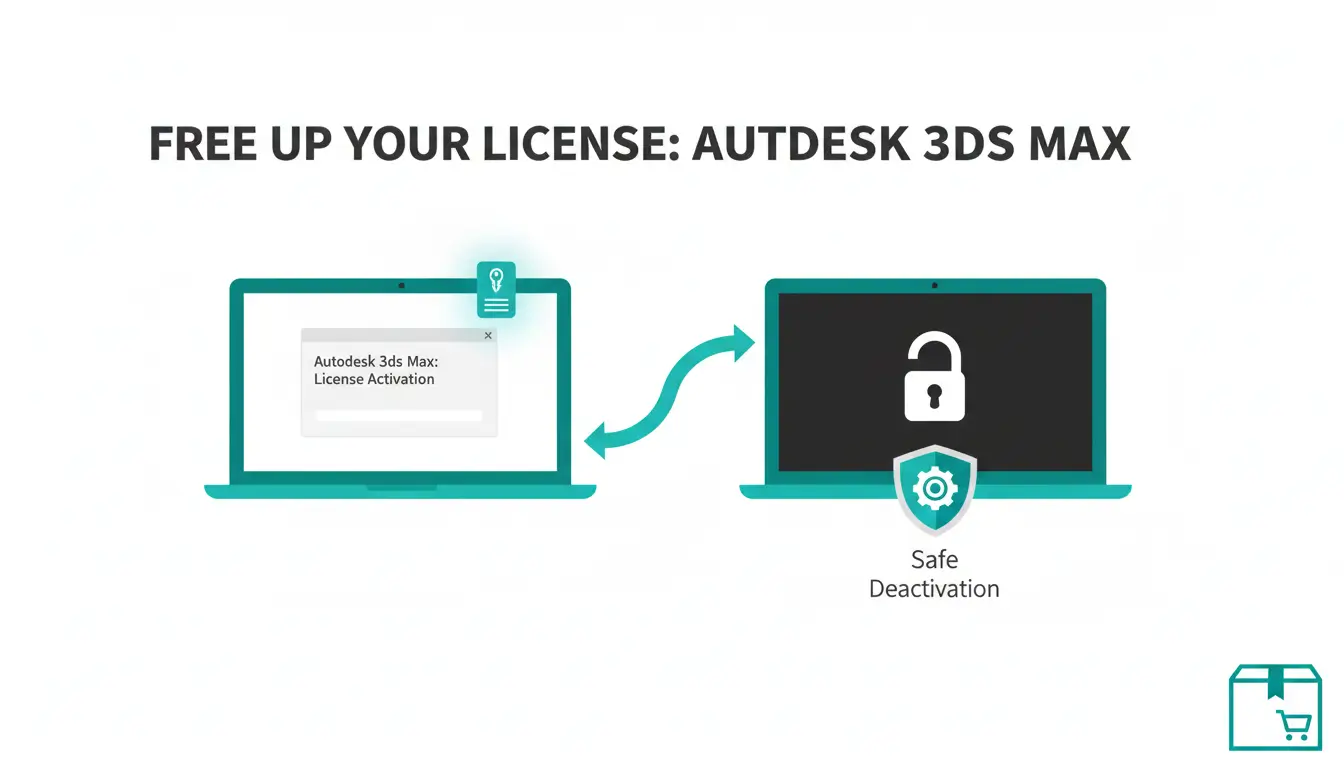
When to remove an Autodesk 3ds Max licence is a common question for professionals who need to move software between machines, prepare hardware for resale, or resolve activation problems. Typical scenarios include migrating the licence to a new PC after an upgrade, wiping a workstation before selling or repurposing it, troubleshooting persistent activation or network licence conflicts, and reclaiming a seat when an employee leaves. Removing the licence before changing hardware helps avoid stranded activations and keeps your Autodesk Account tidy. For related products and licensing options, see other Autodesk offerings.
Before removing a licence, back up custom scripts and preferences, then sign out of the application and your Autodesk Account. If the product shows a “Deactivate” or “Remove License” option, use it; otherwise uninstall the application and use the Autodesk Account portal to free or reassign the seat. If you encounter activation errors, note the error code and contact Autodesk support for guided deactivation. For official account and licensing tools, consult Autodesk’s website for step-by-step help and support options.
autodesk 3ds max licence users should confirm their licence model before making any changes — subscription, single-user (named) licence, or network (multi-user) seat affect how you deactivate, migrate or reinstall. Start by signing into your Autodesk Account or contacting your IT/licensing administrator to confirm whether seats are assigned to users or managed by a license server. If you rely on a network seat, coordinate with your server administrator so you don’t lose access for other users when you remove or move a seat.
Back up everything that matters: active project folders, external asset libraries, custom scripts and plugins, renderer presets, renderer network configurations, UI layouts and keyboard shortcuts, and any registry or preference exports. Export or copy settings from the program’s preference menus and archive plugin installers or serial numbers. Also create a quick inventory: installed plugins and their versions, third-party renderers, and license IDs.
Keep one local copy and one offsite or cloud copy of critical projects. If you need product grouping or media-focused details, see the Autodesk Media & Entertainment products for related workflow notes. For official licensing procedures and account management guidelines, consult the Autodesk official site.
Check whether your licence is listed as “named user” (assigned to an email) or “network” (managed by a server). Named-user licences are handled through your Autodesk Account; network licences appear on a license server (FlexNet or similar). To prepare, close 3ds Max, export preferences, copy your project directories and asset caches, and save a list of installed plugins. If you’re unsure about deactivations or transfers, contact your license administrator so backups and seat changes happen smoothly without interrupting production.
Quick guidance on where to locate your autodesk 3ds max licence details so you can manage activations, renewals, or prove entitlement.
If details are missing, contact Autodesk support via the Autodesk website or review your vendor history at SoftAuthentic Autodesk products to locate order records.
If you need to move an autodesk 3ds max licence from one computer to another, sign in to your Autodesk account to remove the device association for single‑user subscriptions and seats tied to an Autodesk ID. Deactivating a device frees the license so it can be activated on a new machine; this is the recommended route when you no longer have access to the old workstation. Note that network or multi‑user licenses are managed differently and require your account administrator.
Sign in at account.autodesk.com (or visit the Autodesk account home) and follow these steps to deactivate a machine:
For purchase details or product guidance related to Autodesk’s creative tools, see our Autodesk Media & Entertainment product page.
autodesk 3ds max licence holders who need to move a seat from a computer without internet access can use Autodesk’s License Transfer Utility (LTU) — a safe, supported way to export and import licences between machines. LTU is intended for situations where normal online deactivation/activation isn’t possible: it exports a transferable licence file from the source machine that you then copy to the target system. Before you begin, confirm the LTU is available for your product version and that you have administrator rights, the product serial number, and any product keys on hand.
Typical workflow: run the LTU on the machine currently holding the licence, choose “Export” or “Deactivate for Transfer,” save the generated transfer file to removable media, then run LTU on the destination machine and use “Import” or “Reactivate from Transfer File.” Keep the exported file secure while in transit and remove it after import. For product-specific guidance and Media & Entertainment tools, see the Autodesk Media & Entertainment products overview.
If you’re unsure where to obtain the LTU or need official documentation, check Autodesk’s site for the latest utility and instructions on supported products and versions: visit the Autodesk official site for downloads and guidance.
1) Verify product version, serial number, and that LTU supports your release. 2) On the source PC launch LTU, select Export/Deactivate for Transfer and save the transfer file to a trusted USB. 3) Physically move the file to the target machine. 4) Run LTU there and choose Import/Reactivate from Transfer File; follow prompts and restart 3ds Max. 5) Retain a secure copy of export logs for audit, and delete the transfer file once activation is confirmed. If anything fails, contact Autodesk support and provide the LTU log file for faster troubleshooting.
Use the License Transfer Utility (LTU) included with 3ds Max to move an autodesk 3ds max licence between machines. The steps below assume you have administrator rights and network or removable-media access between systems.
For related product information see Autodesk Media & Entertainment, or visit the Autodesk website for official support resources.
After deactivating or uninstalling Autodesk products, leftover cached files and registry entries can cause activation conflicts. Begin by signing out and deactivating the product, then close all Autodesk applications and stop the Autodesk Desktop Licensing services (run Services.msc as Administrator). Next, remove known licence caches and folders such as the hidden ProgramData Autodesk folders and per-user AppData entries—these commonly include locations under C:\ProgramData\Autodesk and your user %APPDATA%\Autodesk. Always back up any folders before deleting, and if you plan to reinstall, keep a copy of exported activation data.
On Windows, carefully clean related registry keys only after backup. Open regedit as Administrator and export keys you will change (File → Export). Target entries under HKEY_LOCAL_MACHINE\SOFTWARE\Autodesk, HKEY_CURRENT_USER\SOFTWARE\Autodesk, and on 64-bit systems also HKEY_LOCAL_MACHINE\SOFTWARE\Wow6432Node\Autodesk. Remove only keys clearly tied to licensing or AdLM/CLM; avoid deleting general product configuration you’re unsure about. If FLEXnet entries remain and are known to be linked to the product, remove them cautiously. Reboot after removals and verify services restart normally. If you encounter activation errors, consult Autodesk support or your license administrator before attempting further changes.
For general product documentation see the Autodesk product hub and the official Autodesk website for support and guidance.
If you no longer need the autodesk 3ds max licence on this machine, fully remove both 3ds Max and the Autodesk Licensing Service to avoid orphaned licenses and background processes. The supported route is through Windows Control Panel (Programs and Features) or Settings > Apps: locate “Autodesk 3ds Max” and “Autodesk Licensing Service” (or “Autodesk Desktop Licensing Service”), choose Uninstall, and follow the prompts. Close 3ds Max and any Autodesk background utilities before starting, and run the uninstaller with administrative rights when prompted.
After the uninstall completes, reboot the computer to finalize removal—this clears running services and releases file locks. If you want vendor guidance on licensing and removal nuances, consult the official Autodesk site for support and documentation.
Recommended order is to remove 3ds Max first, then the Licensing Service. If you use network licensing, ensure the machine is not acting as the license server before uninstalling. Back up custom scripts, plugins and preference folders (typically in %localappdata% and %appdata%) if you plan to reinstall. For information on related product families and media tools, see the Autodesk Media & Entertainment overview on our site.
If you need to reclaim or transfer an autodesk 3ds max licence before uninstalling, release it via the Licensing dialog inside 3ds Max or through your Autodesk Account. Standalone licenses can often be returned or transferred from Help > About or the License Manager; network licenses require confirming the license server status and, if necessary, stopping the License Manager service. If the application won’t start to release a license, contact Autodesk support to free the entitlement. Keep your serial numbers and product keys recorded before removal so reactivation is straightforward if you reinstall later.
If deactivation or removal fails for your autodesk 3ds max licence, pause and gather the right evidence before repeating removal steps or escalating. Start by recording the product serial number, product key, associated Autodesk account email, order or invoice number, the exact error messages, and the date/time each failure occurred. Collect licensing and installer log files (look in ProgramData or the product’s installation folders), and take screenshots or short screen recordings of the errors.
Next, retry removal with elevated privileges: close 3ds Max, run the uninstaller as Administrator, stop Autodesk licensing services, and, if available, use Autodesk’s official uninstall or licensing cleanup tools. If you attempted manual file deletion, reverse any partial changes, reboot, and try a clean uninstall followed by a fresh install. Ensure system time, network connectivity, and firewall settings aren’t blocking activation servers.
If the problem persists, prepare a concise escalation package (see the checklist below) and contact Autodesk Support for guided assistance. Include the logs and evidence so support can reproduce and diagnose the issue faster. For general Autodesk product resources and downloads, see the Autodesk product resources page.
Before contacting Autodesk, gather: serial number and product key, Autodesk account email, proof of purchase (invoice), exact error text or codes, screenshots, and timestamps. Export or copy licensing logs from ProgramData\Autodesk or the product Logs folder and include system information (OS version, 3ds Max build). Compress these files into a single ZIP and note the steps you already tried (uninstall, service restarts, network checks).
Provide this package when you reach out to Autodesk Support so their agents can work with concrete data to resolve activation or deactivation issues rapidly. For direct help, visit Autodesk Support.
If you need help with an autodesk 3ds max licence, visit Autodesk Support to open a ticket, start a chat, or search knowledge base articles. When you contact support, be ready to provide:
Clear, complete details speed diagnosis and resolution. For product-specific guidance on 3ds Max and related tools, see our 3ds Max and M&E products page. To open a support case or access official troubleshooting resources, visit Autodesk Support (autodesk.com/support).



 Autodesk
 Design Softwares
 CorelDraw
 Affinity V2
 Microsoft & Windows
 Windows
 Microsoft 365