- Instant email delivery
- Global licenses
- Secure checkout
- 24/7 customer support
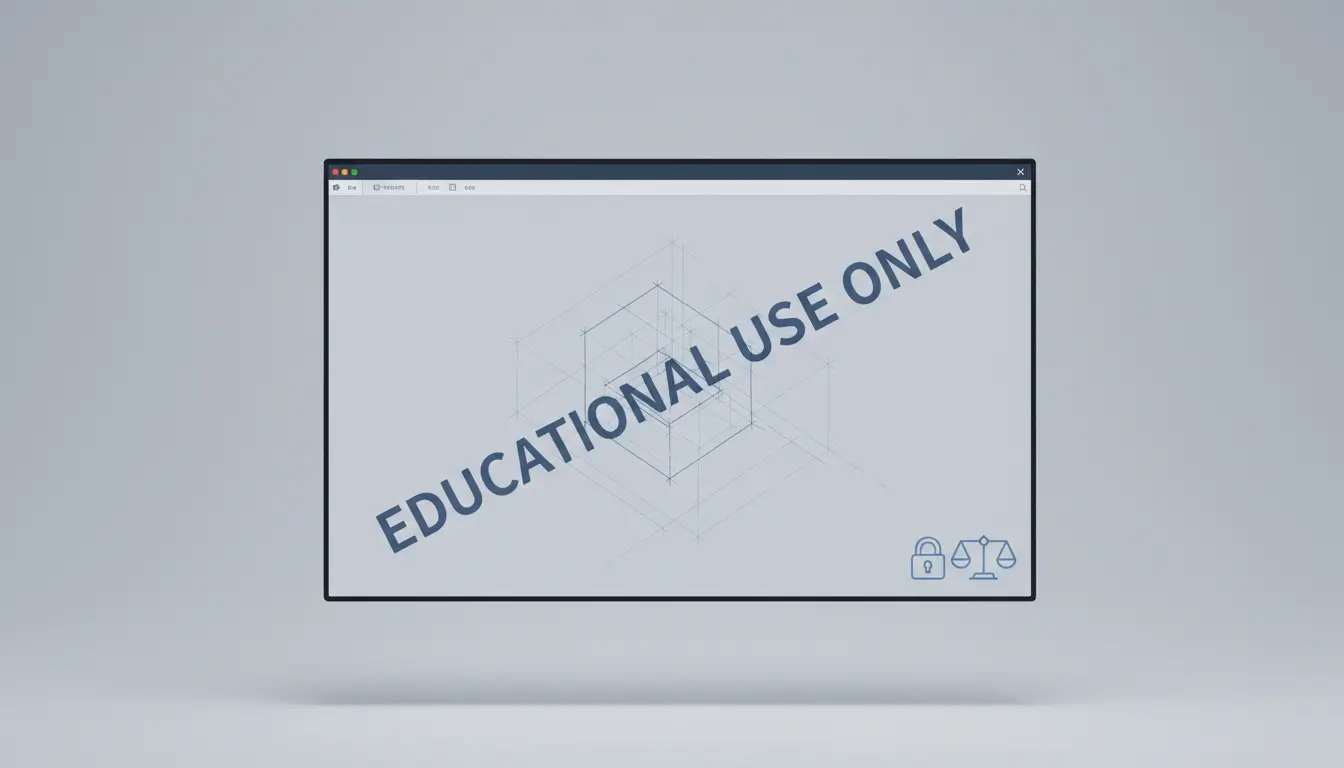
The Autodesk educational stamp is a visible watermark embedded in files, exports, and prints created with Autodesk student or education licenses to indicate non‑commercial use. It appears on-screen in many viewers, on exported PDFs, and on physical prints so that drawings, models, and renderings clearly carry a notice that they were produced with an educational license. The stamp does not change the underlying geometry or metadata of a design, but it can affect how deliverables are presented to clients or contractors and may make files unsuitable for commercial submission.
For students and educators this watermark is intentional: it protects Autodesk’s license terms and clarifies permitted use. If you plan to use your work in a commercial project, the recommended step is to transition to a commercial subscription or a license that removes educational markings — for example, consider the Autodesk Revit product page or other commercial offerings from Autodesk. For official definitions and the most current licensing rules, consult the Autodesk website.
In practice the stamp typically reads “Educational” or “Not for Commercial Use” and may be positioned in a corner of the viewport, embedded into exported raster images, or printed directly on sheet layouts. It’s a visible cue — not a functional limitation — meaning files remain editable and interoperable, but their use is contractually limited. When preparing professional submissions, verify licensing status before delivering stamped outputs to avoid compliance issues.
The autodesk educational stamp is applied to files and outputs generated with education-licensed software to enforce license restrictions and protect intellectual property. By embedding an unmistakable mark or metadata flag, Autodesk ensures that files created under educational terms are clearly labeled and not inadvertently used for commercial projects. This stamp helps reduce misuse, preserves the value of commercially licensed software, and gives Autodesk and downstream reviewers a reliable signal when assessing entitlement and permitted uses.
Practically, the stamp can appear as visible text, a watermark on prints and exports, or as metadata inside native files. That makes it straightforward for clients, contractors, or compliance teams to identify that a drawing or model originated from an educational installation. When a stamped file is used in a commercial context, organizations risk contractual breaches, loss of warranty or support, and potential liability. If you need to move work into a production environment, converting to a commercial license is the proper path; for details about available products and licensing options, see our Autodesk products and licensing overview.
The autodesk educational stamp functions both as a legal control and a practical detection tool. It prevents educational copies from being passed off as commercially licensed work by making the origin of a file traceable—sometimes even after format changes or exports. Third parties routinely spot the mark during reviews, and automated checks can flag noncompliant files in project repositories. If you rely on education software for learning or non-commercial research, continue doing so; if the work will be delivered to clients or used for revenue-generating projects, obtain a commercial license. For authoritative guidance, consult Autodesk licensing information on the official site: Autodesk official licensing information.
autodesk educational stamp issues can affect whether a file is allowed for commercial use, so confirm the source before you proceed. Start by checking the product’s About dialog (Help → About) for an explicit “Educational Product” line. Next, inspect the file itself: open Drawing Properties (DWGPROPS) or the file’s Info/Properties panel to look for tags or comments indicating an educational origin. Also review the print/plot preview — many educational builds add a visible watermark or plot stamp. Finally, sign in to your Autodesk Account and verify the license type listed under Products and Services. If you use AutoCAD, consult the AutoCAD product page for typical educational behavior and notes about watermarks.
Look for three common indicators: (1) an About box message that calls the software an “Educational Product”; (2) metadata or summary info on the file that names an educational license or creator; and (3) visible text on screen prints, exported PDFs, or plotted sheets that reads “For Educational Use Only” or similar. In AutoCAD the stamp often appears on printed output and PDFs; in Revit and other Autodesk apps the flag can be embedded in file properties or export headers. If you discover an educational stamp, contact the file originator for a commercial version or permission before using the work in production. For account-level verification and official guidance, check the Autodesk official site.
When verifying a file or install, open the application menu and choose About (or Help) first — the dialog shows your license type and whether the build is an educational release. Inspect file metadata via File > Properties (or the document’s Properties panel) and look for labels such as “Educational,” “Student,” or “Non‑commercial” that indicate an educational stamp embedded in the file. If a file looks stamped but you need certainty, sign in to your Autodesk Account to confirm whether the subscription is commercial or education-based. For product-specific guidance on locating About and Properties, see the AutoCAD product page. If you can’t find account details, visit the Autodesk website to access your profile and licenses directly. These quick checks usually resolve most questions about provenance and permitted use without needing detailed telemetry or support requests.
The autodesk educational stamp indicates the file was produced with an educational license and cannot legally be removed by tampering. The correct, legitimate routes are straightforward: obtain a commercial license for the relevant Autodesk product and then recreate or export the deliverables under that commercial license; or request that the original author export or re-save the file from a commercial seat so the stamp is no longer applied. These options respect Autodesk’s terms of use, keep your project metadata intact, and avoid downstream compatibility or legal issues.
Practically, that means one of two workflows. First, acquire an appropriate commercial subscription and open the original source files to re-export PDFs, drawings, or other outputs from a properly licensed installation. Second, if you don’t control the source files, ask the creator to produce a non‑educational export or transfer the project to a commercial account. Both approaches preserve object layers, annotation fidelity, and linked references far better than attempting to edit or mask the stamp itself.
For details on product licensing and how to transition from educational to commercial use, see Autodesk AutoCAD licensing options at this site. For official policy and licensing guidance consult Autodesk licensing information.
The stamp exists to prevent commercial use of work created under free or discounted educational licenses. It serves as both a visible notice and a contractual safeguard. Attempting to remove the mark by modifying files risks corrupting drawings, losing references, or violating the license agreement. Instead, treat the stamp as a prompt to confirm entitlement: verify licenses, arrange a commercial export, or coordinate with the original author so the project can be delivered without the educational watermark while remaining compliant and professional.
Purchase or activate a commercial subscription, then open the suspect file in the commercial product and try to remove the autodesk educational stamp by exporting or rebuilding. Use neutral exchange formats or a fresh commercial project to separate geometry from any education-only metadata.
For product choices and subscriptions, see the official Autodesk product overview.
If you open a drawing or model and see an autodesk educational stamp, pause before using it commercially. That watermark indicates the file was created under an education license and using it for business can violate Autodesk’s licensing terms and expose you to copyright or contract issues.
First, contact the file’s creator and ask for a commercially licensed export or a new copy produced under a commercial license. Explain how you intend to use the file and request written confirmation of permission. If the original author can’t provide a clean commercial version, consider rebuilding the work yourself in a commercial seat of the same software or hiring a qualified professional to recreate the model or drawing under an appropriate license. When rebuilding, start from measured references, avoid copying stamped geometry, purge unused elements, and re-create any key details so the result is clearly independent of the educational file.
Keep records of communications and licenses, and if you need guidance on product licensing or alternatives, check Autodesk’s official site for licensing information and best practices. If you plan to recreate or edit CAD data, you may find relevant product information for rebuilding tools on the AutoCAD product information page. Taking these steps protects your project and keeps your use compliant with software terms.
The autodesk educational stamp signals that a file was created with an educational license, and attempting to remove or hide it with hacks, cracks, or patched software is a bad idea. Using unauthorized tools to bypass the stamp violates Autodesk’s license agreement, exposes you to legal consequences, and can jeopardize the integrity of your project files. Cracked utilities often alter core application behavior, producing corrupted drawings, unexpected crashes, or incompatible exports that are difficult or impossible to repair.
Beyond file damage, these removal tools are a common vector for malware and persistent backdoors. Installing unofficial patches can give attackers access to your machine, intellectual property, or client data. If you rely on compromised software in a team environment you risk broader network infection and professional liability. For safe alternatives and legitimate licensing or academic options, consult vendor guidance or authorized resellers—see this page for practical product and licensing resources for AutoCAD.
When a stamp creates a workflow problem, the correct path is to resolve the licensing status through official channels or your institution’s software administrator rather than seeking a shortcut. Properly addressing the license preserves software support, warranty coverage, and collaboration integrity. In short: avoid hacks, protect your files and reputation, and use legitimate routes to fix licensing issues.
Removing or masking the autodesk educational stamp with third‑party tools may seem quick, but it carries immediate risks. Legally, it breaches Autodesk’s terms and could result in sanctions or loss of access. Technically, altered executables or plugins frequently introduce file corruption, unpredictable behavior, and loss of technical support. From a security standpoint, cracked installers are a frequent source of ransomware, keyloggers, and silent data exfiltration.
If you encounter a problem with an educational stamp, stop using unofficial tools. Contact your institution’s licensing office or Autodesk support for remediation, or acquire an appropriate commercial license. These legitimate steps maintain file integrity, ensure updates and security patches, and protect you from legal and cybersecurity fallout.
autodesk educational stamp questions often come up when drawings or renders include a watermark that indicates an educational license was used. If you need a definitive answer about your account or why a stamp appears on exported files, the fastest route is to contact Autodesk support or review your subscriptions in your Autodesk Account. For account-level issues and official guidance, visit Autodesk Help & Support.
If your goal is to legitimately remove the educational stamp, the proper path is to switch to a commercial subscription or license that doesn’t carry that watermark. Purchasing a commercial plan or an appropriate product bundle will remove the stamp for future output; consider authorized resellers if you need licensing advice tailored to a business or institution. For a convenient overview of available commercial options and bundles, see our Autodesk product and subscription page.
Before buying, verify which product edition you need (for example, AutoCAD, Revit, or an industry collection) and whether your organization qualifies for volume licensing or enterprise agreements. Keep payment records and license keys accessible, and ensure new licenses are assigned to the correct Autodesk Account to prevent crossover with educational entitlements. If you’re troubleshooting an unexpected stamp on files produced under a paid license, Autodesk support can check entitlement records and help resolve conflicts.
The “autodesk educational stamp” denotes that the software was activated under an educational entitlement and is intended for learning, not commercial work. To remove it, migrate to a commercial subscription or acquire a commercial seat through an authorized channel; partial workarounds are neither supported nor legal. If you’re unsure which commercial product fits your workflow, contact an authorized reseller for licensing advice or consult Autodesk directly via their support site for account verification and next steps.



 Autodesk
 Design Softwares
 CorelDraw
 Affinity V2
 Microsoft & Windows
 Windows
 Microsoft 365