- Instant email delivery
- Global licenses
- Secure checkout
- 24/7 customer support
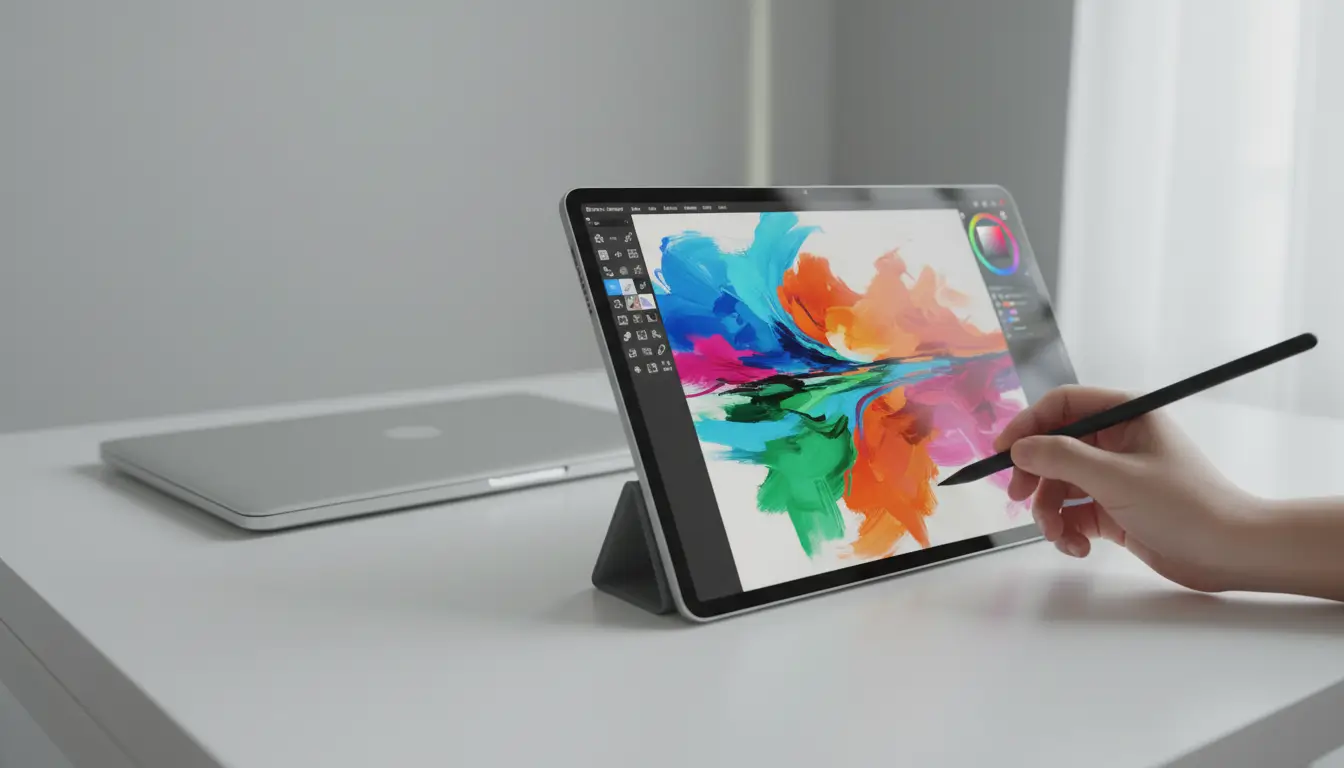
Autodesk SketchBook is a drawing and painting app from Autodesk optimized for pen input and raster illustration; it’s available on desktop and mobile. Built around a distraction-free canvas, SketchBook provides a natural sketching experience with responsive brush engines, full stylus pressure and tilt recognition, and fast, gesture-friendly controls that keep the focus on drawing rather than the interface.
The app is raster-based and offers a wide set of features artists rely on: customizable brushes and brush libraries, unlimited layers with blending modes, symmetry and perspective guides, rulers, and time-lapse recording of your process. It also supports common file formats and PSD import/export to fit into existing pipelines. Performance is tuned for both high-resolution monitors and touch devices, so using Wacom, Surface Pen, or Apple Pencil feels fluid and immediate.
SketchBook is suited for quick concepting, detailed illustrations, storyboard work, and visual note-taking. It’s approachable for beginners while offering the control professionals expect. For official product details and downloads, see the official Autodesk site. If you’re exploring other Autodesk titles or suites, visit the Autodesk software catalog for options and licensing information.
SketchBook appeals to a broad range of users: hobbyists who want a refined sketching app, students learning digital drawing, and professionals doing rapid concept art or polished illustrations. Its streamlined toolset favors speed—quick brushes, radial menus, and canvas-first workflows—so it’s ideal when iteration and hand-drawn feel matter. Because it’s raster-focused, it’s not a vector editor, so designers needing scalable vector output should pair it with other tools. Overall, it’s a practical, pen-first application for anyone who values direct, tactile drawing on both desktop and mobile devices.
Autodesk SketchBook is available on Windows and macOS desktops, and as native apps for iPad and Android tablets and phones. While the core drawing engine and brush fidelity are consistent, feature sets and performance vary by platform: desktop builds favor large canvases, advanced layer controls and higher export options, whereas mobile versions prioritize streamlined workflows, touch and stylus support, and optimized battery use.
On iPad, Apple Pencil integration and pressure/tilt handling are excellent; Android experience depends on device drivers and stylus compatibility. On macOS and Windows, expect better multi-monitor support, larger file handling and full keyboard shortcuts. Consider device memory and GPU when working with very large canvases or many layers.
For information on Autodesk’s broader app lineup and compatibility, see the Autodesk product catalog, and check system requirements on the Autodesk official site before installing.
autodesk sketchbook users should always verify Autodesk’s official system requirements for the exact version you plan to install, since specs can change between releases. Requirements typically specify supported operating systems (Windows and macOS builds), a 64‑bit OS requirement, minimum CPU class, RAM, and available disk space. Graphics acceleration (GPU model, VRAM and driver version) often affects brush responsiveness and canvas rotation, while input hardware—pressure‑sensitive tablets, styluses, and their drivers—can determine whether advanced brush features behave correctly. Screen resolution, multi‑monitor setups, and whether the app supports Metal, DirectX or OpenGL on your machine are also common variables.
For professional or classroom deployments, plan for the recommended rather than minimum specs: more RAM and a modern multi‑core CPU will prevent lag with very large canvases or many layers. Keep GPU drivers and OS updates in a managed state, and document the tested driver/OS combination so you can reproduce a stable environment. Avoid running in unsupported virtualized environments unless explicitly listed in the product notes. For the most current details and version‑specific notes, always check the official Autodesk page before installing: Autodesk system requirements.
Before installing, run this quick checklist to reduce surprises: confirm OS build and 64‑bit support; verify minimum RAM (8 GB) and aim for 16+ GB for heavy work; check GPU model and update drivers; reserve sufficient SSD/HDD space for projects and autosaves; confirm tablet/stylus compatibility and latest firmware/drivers; test a trial with representative files and note any performance tuning (power settings, hardware acceleration toggles). If you want related Autodesk titles or deployment guidance, see the vendor’s product listings for comparison: Autodesk products and downloads.
For running Autodesk Sketchbook reliably, the practical minimum is a modern 64‑bit OS (Windows 10/11 or the current macOS), roughly 4 GB of RAM, a dual‑core CPU, and an OpenGL/DirectX‑compatible GPU with about 512 MB of VRAM. These specs will let you sketch and use a few layers, but large canvases, many brushes or high-resolution exports can cause slowdown and stuttering.
Recommended specifications for smooth, day‑to‑day creative work are 8 GB or more RAM (16 GB if you keep many apps open), a quad‑core CPU, a dedicated GPU, and up‑to‑date graphics drivers. An SSD speeds load/save times, and a responsive pen tablet or display markedly improves drawing accuracy and latency. If you collaborate or work with complex files, prioritize extra RAM and a stronger GPU to avoid redraw and export bottlenecks.
For related Autodesk products and bundles, see the SoftAuthentic Autodesk overview, and consult the Autodesk official site for the latest supported hardware guidance.
Before you install autodesk sketchbook, use the system tools built into your computer to confirm it meets minimum and recommended requirements. On Windows, open Settings → System → About to verify the OS edition and installed RAM, then use Task Manager (Performance tab) to check CPU, memory and GPU utilization. Run dxdiag (Press Win+R, type dxdiag) to see DirectX version, display driver details and sound devices. Device Manager can confirm exact GPU model so you can verify driver updates from the GPU vendor.
On macOS, choose About This Mac for an overview of your macOS version, memory and graphics; click System Report for detailed hardware identifiers and Storage to check free disk space. On Linux, commands like lscpu, free -h and lspci | grep -i vga reveal CPU, RAM and GPU information. Also check available disk space, user account privileges and whether virtualization or security tools could block installation.
Once you’ve gathered specs, compare them to the product requirements on the official Autodesk pages for the target app to avoid surprises. For curated downloads and information about Autodesk products and bundles, see SoftAuthentic’s Autodesk overview.
For Sketchbook specifically, focus on three things: operating system compatibility, graphics support and input hardware. Confirm your OS version is supported and that you have sufficient free disk space and RAM for typical drawing files. Ensure your GPU driver is up to date—Sketchbook benefits from modern OpenGL/DirectX drivers—and verify stylus or touch drivers if you plan to use a tablet. After updating drivers, launch a trial or portable build and test canvas responsiveness, brush lag and pressure sensitivity. If anything feels off, export system details (dxdiag or System Report) and compare them to the Autodesk system specifications before proceeding with a full install.
Before launching Autodesk Sketchbook, confirm hardware and OS details so problems are easier to diagnose. On Windows: open Settings > System > About to see OS build and RAM; for detailed hardware run msinfo32 and open Device Manager to verify the graphics adapter. On macOS: choose Apple menu > About This Mac to check macOS version and GPU. On iPad/Android: go to Settings > About (or About tablet/phone) for OS level and storage info.
If you need licensing or product options, see our Autodesk products page and the official Autodesk site for downloads and support.
autodesk sketchbook has robust support for pressure‑sensitive tablets and pens, but the feel and feature set you get depend largely on your tablet driver and operating system. SketchBook reads pressure, tilt and button inputs exposed by the tablet API; if the OS or driver exposes tilt data, SketchBook can use it for brush dynamics. That means responsiveness, latency and access to tilt or rotation controls are as much a function of your tablet vendor’s driver and firmware as they are of the app.
For the smoothest experience, keep your tablet drivers and firmware up to date, choose the recommended input backend for your platform (for example, Wintab vs. Windows Ink on Windows), and test in SketchBook’s stylus settings. Calibrate pressure curves and nib feel inside the tablet utility and in SketchBook’s Brush Properties to match the physical pen pressure to on‑screen stroke width. If pressure seems inconsistent, try toggling input APIs, disabling conflicting utilities, or restarting the app after driver updates.
If you manage multiple Autodesk tools in your workflow, consult the official Autodesk product resources for compatibility guidance and troubleshooting, for example the general Autodesk product pages.
Tilt, rotation and advanced pen features are available only when the tablet driver reports them. On Windows, verify whether your tablet uses Windows Ink or Wintab and switch if one produces better pressure response. On macOS, confirm that the tablet vendor supports tilt in their driver for that OS version. If pressure is missing entirely, check OS privacy/input permissions and the tablet control panel, then update or reinstall the driver. For best results, set a comfortable pressure curve, enable smoothing only if you need it, and test different nibs — hardware wear can change response. When in doubt, refer to your tablet manufacturer’s troubleshooting notes and the Autodesk website for app‑specific guidance.
When using autodesk sketchbook, start by installing the latest tablet drivers and firmware to ensure pressure sensitivity and tilt work reliably. Calibrate your pen pressure in the tablet utility and in SketchBook’s brush settings so strokes feel natural. Choose a canvas size that matches your output — 3000–4000 px is plenty for screens, higher for print — and limit active layers to what you need; merge or group extras to keep memory usage down. In app preferences enable GPU acceleration and canvas caching when available to reduce lag, and set brush smoothing conservatively to balance responsiveness and stability. Save a preferred workspace and export a small test PSD to confirm compatibility with other apps. For more product resources check the SoftAuthentic Autodesk hub and visit the Autodesk official site for driver and compatibility notes.
If autodesk sketchbook feels sluggish, there are quick, effective steps you can take to restore responsiveness without changing how you draw. Start by addressing big resource sinks—canvas size, brush complexity, background apps and graphics drivers—and then fine‑tune settings for steady performance.
For more on Autodesk tools and compatibility, see the Autodesk software collection.
Quick checklist you can run through in 5–10 minutes: 1) reduce canvas DPI and undo history depth, 2) switch to a basic brush preset and disable high-sample brushes, 3) merge unused layers and rasterize complex groups, 4) close or pause cloud sync and browser tabs, 5) update GPU drivers and confirm hardware acceleration is enabled. If problems persist, consult official resources for driver compatibility and system requirements — see Autodesk product pages for guidance. These steps resolve most slowdowns and keep your workflow fluid so you can focus on drawing rather than troubleshooting.
If Sketchbook acts sluggish or behaves oddly, work through this compact checklist to isolate software versus hardware issues. Follow each step, testing Sketchbook after changes so you know what fixed the problem.
If problems persist, consult the Autodesk support site for known issues and updates, or compare behavior with other Autodesk apps in the product catalog.
autodesk sketchbook is excellent for fast, expressive drawing, but if your work requires CAD precision, architectural modeling, or advanced manufacturing features you should consider related Autodesk applications. AutoCAD remains the standard for 2D drafting and document production; Revit targets building information modeling and coordinated architecture/engineering workflows; Fusion 360 combines CAD, CAM, and CAE for product design and manufacturing. Each product targets different workflows and system needs, so matching the tool to the task prevents costly workflow compromises.
For straightforward migration paths: use AutoCAD for precise drawings and interoperability with DWG-based projects, Revit for BIM-centric design coordination, and Fusion 360 when you need integrated modeling, simulation, and CAM. Before committing, review each product page for recommended hardware and OS support to ensure your workstation or laptop meets performance expectations. If you’re comparing licenses, bundles such as the AEC Collection or product-specific subscriptions can also influence which apps are the best fit for studio or enterprise environments.
Learn more about AutoCAD on the AutoCAD product page and see official Autodesk details for Revit on the Revit overview.
Choose autodesk sketchbook when you primarily sketch, paint, or iterate concepts quickly—especially on tablets or touch-enabled devices. It’s lightweight, optimized for stylus input, and keeps brush responsiveness and workflow simplicity front and center. If your output needs include layered concept art, storyboarding, or rapid ideation, Sketchbook is often faster and less resource-intensive than CAD or 3D packages.
However, if your projects demand constrained dimensions, parametric modeling, BIM data, or CAM toolpaths, move to AutoCAD, Revit, or Fusion 360 respectively. In short: use Sketchbook for creative exploration; upgrade when precision, data integration, or manufacturing preparation become primary requirements.
autodesk sketchbook remains a fast, intuitive drawing app for sketching and concept work. Use these quick links to explore related Autodesk tools that complement your creative workflow — from detailed drafting to full 3D modeling.
AutoCAD — industry-standard drafting and precise 2D/3D design; great when sketches need technical development. Revit — purpose-built for BIM and architectural documentation. Fusion 360 — integrated CAD/CAM for product design and manufacturing.
If you’re deciding where to move a concept next, AutoCAD helps translate freehand ideas into accurate plans while Fusion 360 brings geometry into production-ready models. Revit is ideal when the sketch is part of a building project.
Visit the Autodesk official site for comparisons and licensing, or see the AutoCAD product page for specifics. These resources will help you connect autodesk sketchbook work to the appropriate Autodesk application.



 Autodesk
 Design Softwares
 CorelDraw
 Affinity V2
 Microsoft & Windows
 Windows
 Microsoft 365